
File Explorer
The File Explorer lets you open a local folder, browse its files in a tree, and edit them directly on disk — turning Tachi Code from a single-file editor into a lightweight project editor.
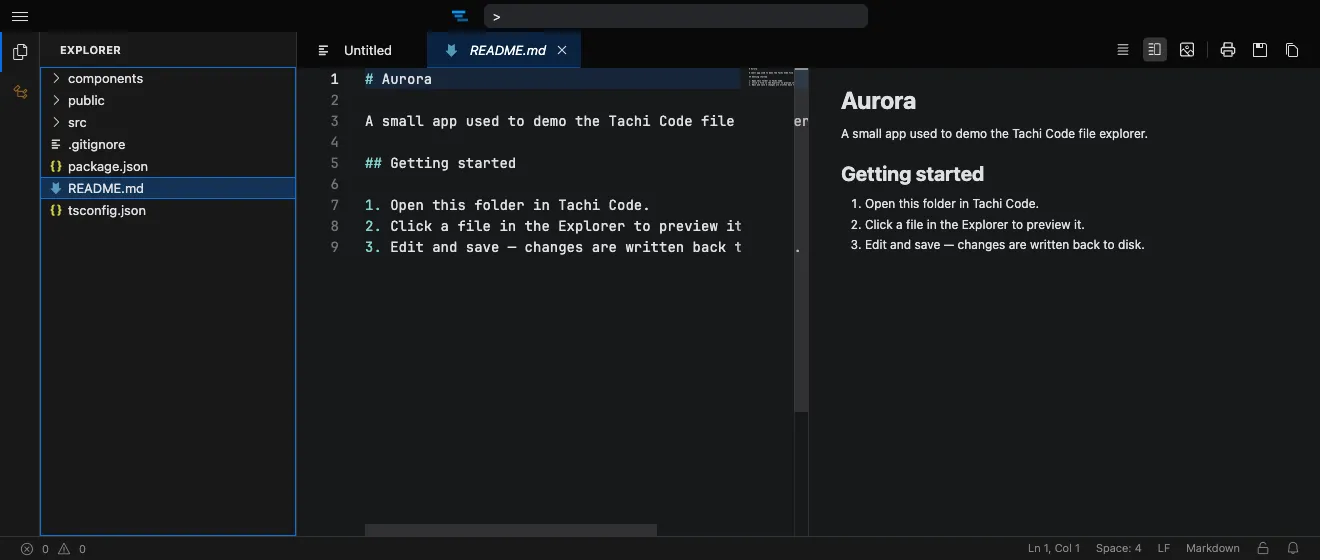
Opening a folder
Section titled “Opening a folder”- Run File: Open Folder from the Command Palette, or click Open Folder in the Explorer view.
- Grant Tachi Code permission to access the folder when your browser prompts you.
- The folder’s contents appear in the Explorer in the sidebar.
Access to your files uses the browser’s File System Access API and stays entirely on your device.
Browsing and editing
Section titled “Browsing and editing”The Activity Bar on the far left switches between sidebar views, and the Explorer view shows the file tree for the open folder.
Clicking a file opens it in an ephemeral tab — a preview tab that’s reused as you click through other files, so browsing a project doesn’t fill the editor with tabs. Editing a file (or double-clicking it) promotes the tab to a permanent one. Saving writes your changes back to the file on disk.
Restoring your project
Section titled “Restoring your project”Tachi Code remembers the last folder you opened so you can pick up where you left off. The window.project.restoreProject setting controls what happens on launch:
- Reopen — automatically reopen the last folder (re-prompting for permission if it has expired).
- Prompt — show a notification offering to reopen the last folder.
- None — start with no folder open.