
Markdown Preview
Markdown files render in a live preview pane that updates as you type.
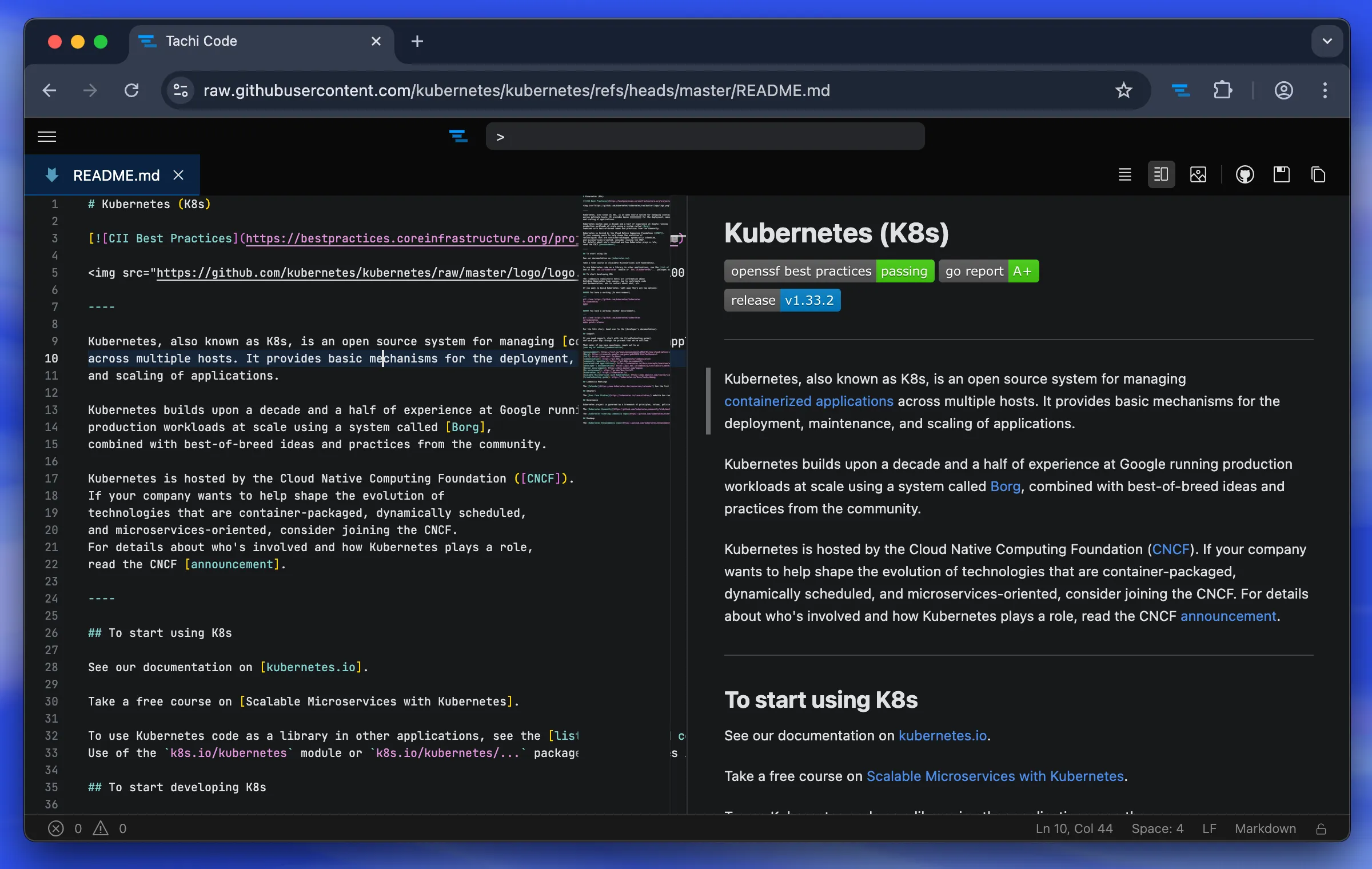
Live preview
Section titled “Live preview”The preview re-renders as you edit, so you always see the formatted result next to your source. You can turn live updates on or off with the markdownPreview.livePreview setting.
A few settings control how the preview behaves:
- markdownPreview.defaultMode sets the layout used when you first open a Markdown file (
Side by Side,Hidden, orFullscreen). - markdownPreview.maxWidth caps the width of the rendered content, which keeps long lines readable on wide screens.
- markdownPreview.scrollPreviewWithEditor keeps the preview scrolled to match the editor.
- markdownPreview.rewriteRelativeUrls resolves relative links and image paths so they load in the preview.
- markdownPreview.doubleClickToSwitchToEditor jumps to the editor when you double-click in the preview.
Math rendering
Section titled “Math rendering”The preview renders LaTeX math expressions and MathML.
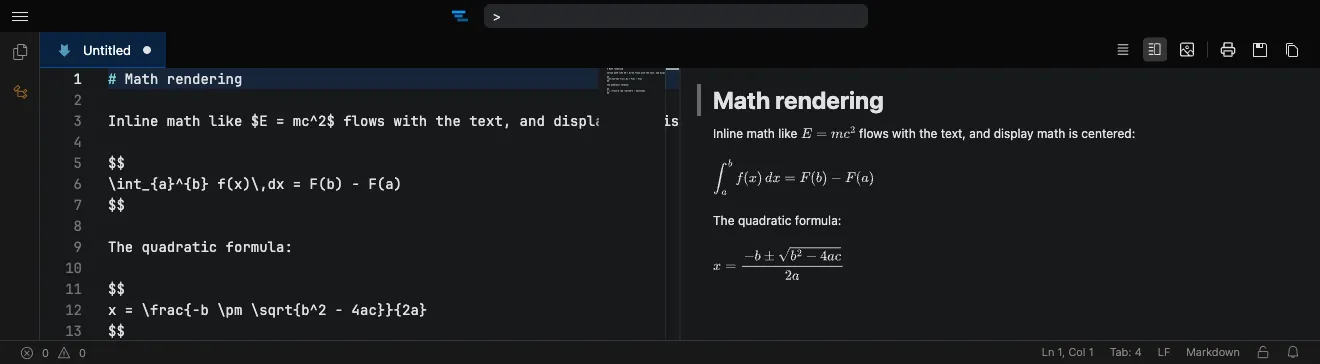
Use $...$ for inline math and $$...$$ (or a fenced code block tagged math) for display math:
Inline math like $E = mc^2$ flows with the text.
Display math is centered on its own line:
$$x = \frac{-b \pm \sqrt{b^2 - 4ac}}{2a}$$
Math rendering is controlled by the markdownPreview.enableMathRendering setting and is enabled by default.
Mermaid diagrams in Markdown
Section titled “Mermaid diagrams in Markdown”Fenced code blocks tagged mermaid render as diagrams directly in the preview.
```mermaidflowchart LR A[Start] --> B{Decision} B -->|Yes| C[Continue] B -->|No| D[Stop]```This is controlled by markdownPreview.enableMermaidPreview , and markdownPreview.mermaidDefaultView chooses whether each block shows the rendered diagram or its source by default. See the Mermaid preview page for the full list of supported diagram types.
Code blocks
Section titled “Code blocks”Fenced code blocks are syntax highlighted using your editor theme. The markdownPreview.highlightCodeblocks setting toggles this highlighting.
Print preview and PDF export
Section titled “Print preview and PDF export”The Markdown: Print Preview action opens a clean, print-optimized rendering of the current Markdown file in your browser’s print dialog.
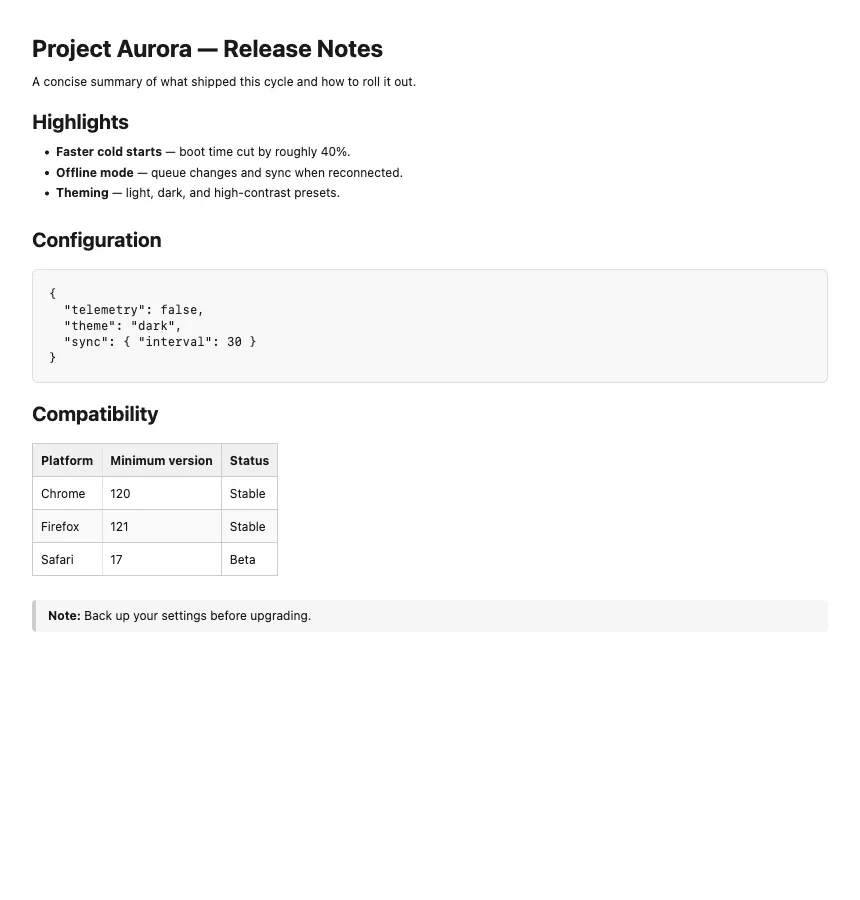
Because it goes through the browser’s native print flow, you can choose Save as PDF as the destination to turn any Markdown file into a nicely formatted PDF. Headings, tables, code blocks, lists, blockquotes, and math all carry over.
The markdownPreview.printPreserveCodeStyles setting preserves your theme’s syntax-highlighting colors and backgrounds in code blocks when printing, which is handy for light, print-friendly themes.