
Live Preview
Tachi Code renders many file types in a dedicated preview pane alongside the editor, so you can see your changes as you make them. Some file types — like CSV — can even be edited directly in the preview.
Supported file types
Section titled “Supported file types”Each file type has its own preview, with behavior and settings tailored to it:
Opening a preview
Section titled “Opening a preview”Most file types open their preview automatically in a split view alongside the editor. The exact controls vary by file type — see each file type’s page for the details — but the general flow is the same:
- Open a previewable file in the editor.
- Use the preview buttons in the editor’s action bar to show, hide, or expand the preview.
For text-based previews you can also cycle through layouts with
Shift + Command + V ShiftCommandV Shift + Control + V ShiftControlV .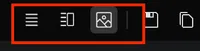
Preview layouts
Section titled “Preview layouts”The text-based previews — Markdown, Mermaid, and SVG — can be arranged in a few layouts:
Side by side (horizontal split)
Section titled “Side by side (horizontal split)”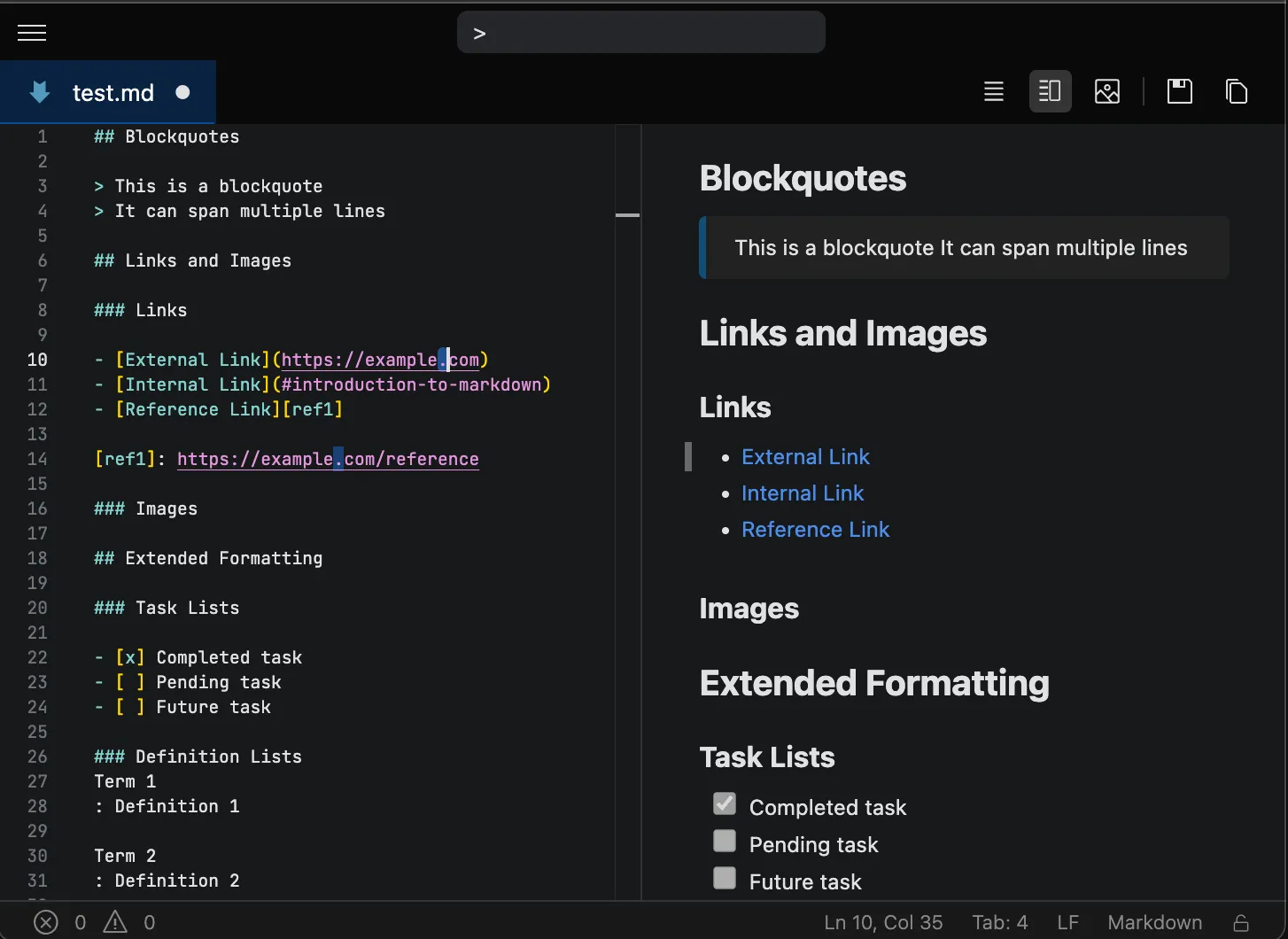
Top and bottom (vertical split)
Section titled “Top and bottom (vertical split)”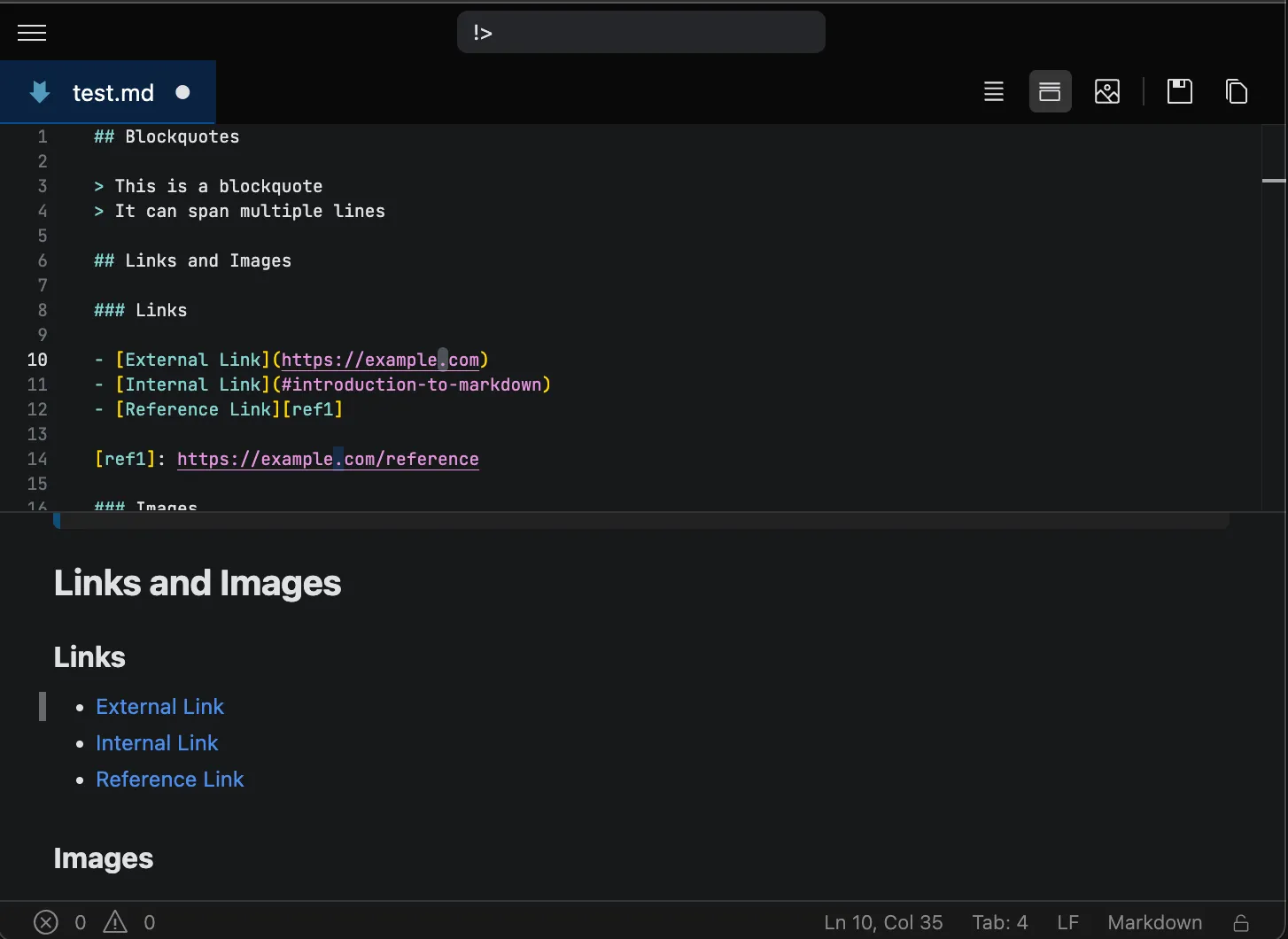
Fullscreen (source is hidden)
Section titled “Fullscreen (source is hidden)”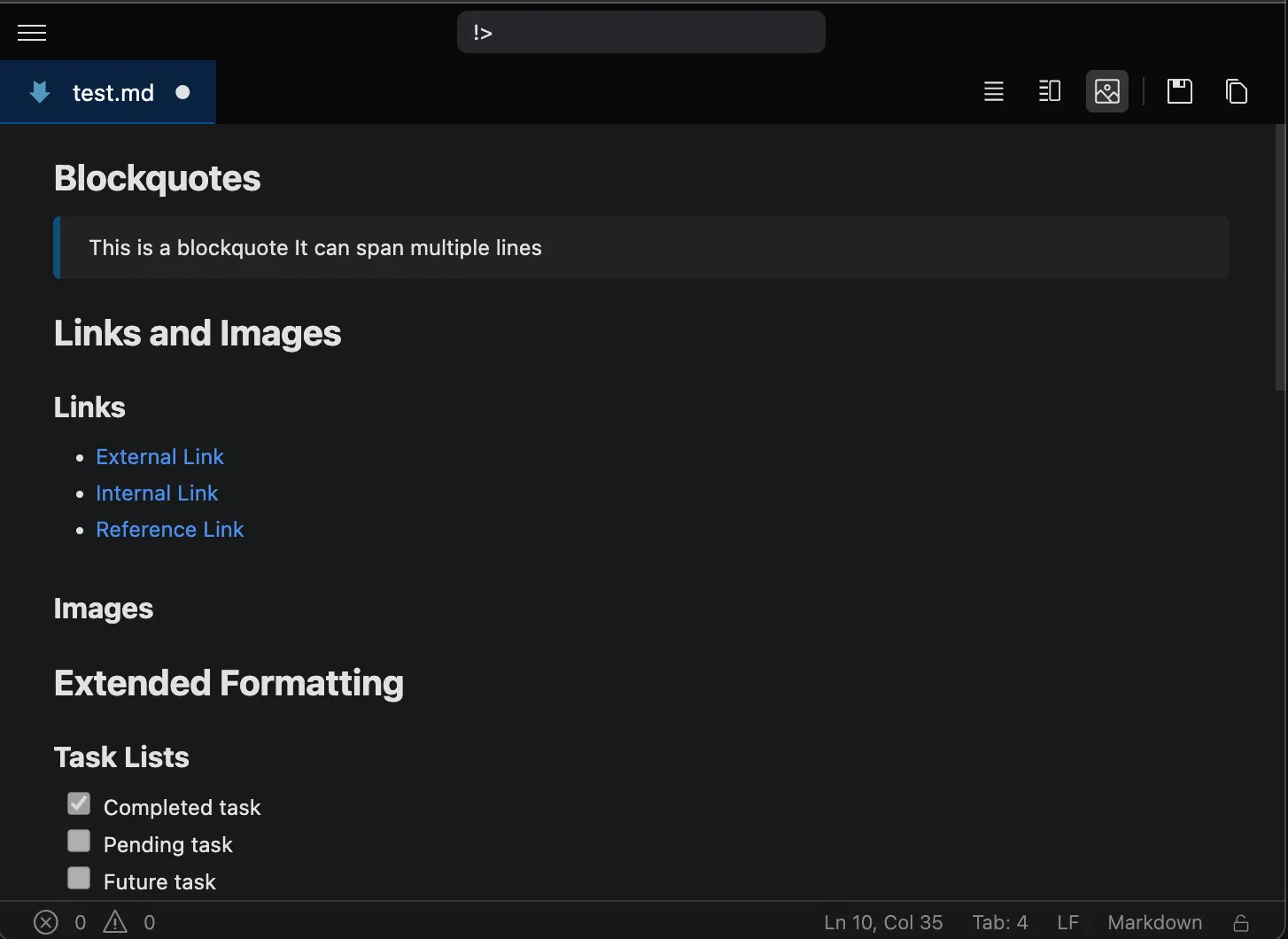
Each of these previews remembers a default layout that you can configure with its own defaultMode setting, documented on its page.